
NEWYou can now listen to Fox News articles!
With Microsoft ending support for Windows 10 this October, many people are racing to upgrade. Catherine, a longtime HP desktop user, shared her concerns with us: “I need to purchase a new/updated computer with Windows 11 pretty darn quick. I’ve utilized HP desktops for years and would prefer to continue to do so. My concern deals with transferring everything from one computer to another, made more interesting since my husband and I have separate setups and log-ins. I had a My Passport running, but now I believe a lot is in the cloud. We are concerned about losing our emails/contacts, etc. I also use various programs for a couple of groups I’m involved with (Word, PowerPoint, Excel, Adobe Acrobat, etc.), which I cannot afford to lose. Any guidance for a smooth transition would be great.”
If this sounds familiar, you’re not alone. The good news: you can move everything to a new HP computer running Windows 11 with the right preparation and tools. Here’s a step-by-step guide.
Sign up for my FREE CyberGuy Report
Get my best tech tips, urgent security alerts, and exclusive deals delivered straight to your inbox. Plus, you’ll get instant access to my Ultimate Scam Survival Guide — free when you join my CYBERGUY.COM/NEWSLETTER
WHAT HAPPENS WHEN WINDOWS 10 SUPPORT ENDS IN 2025?
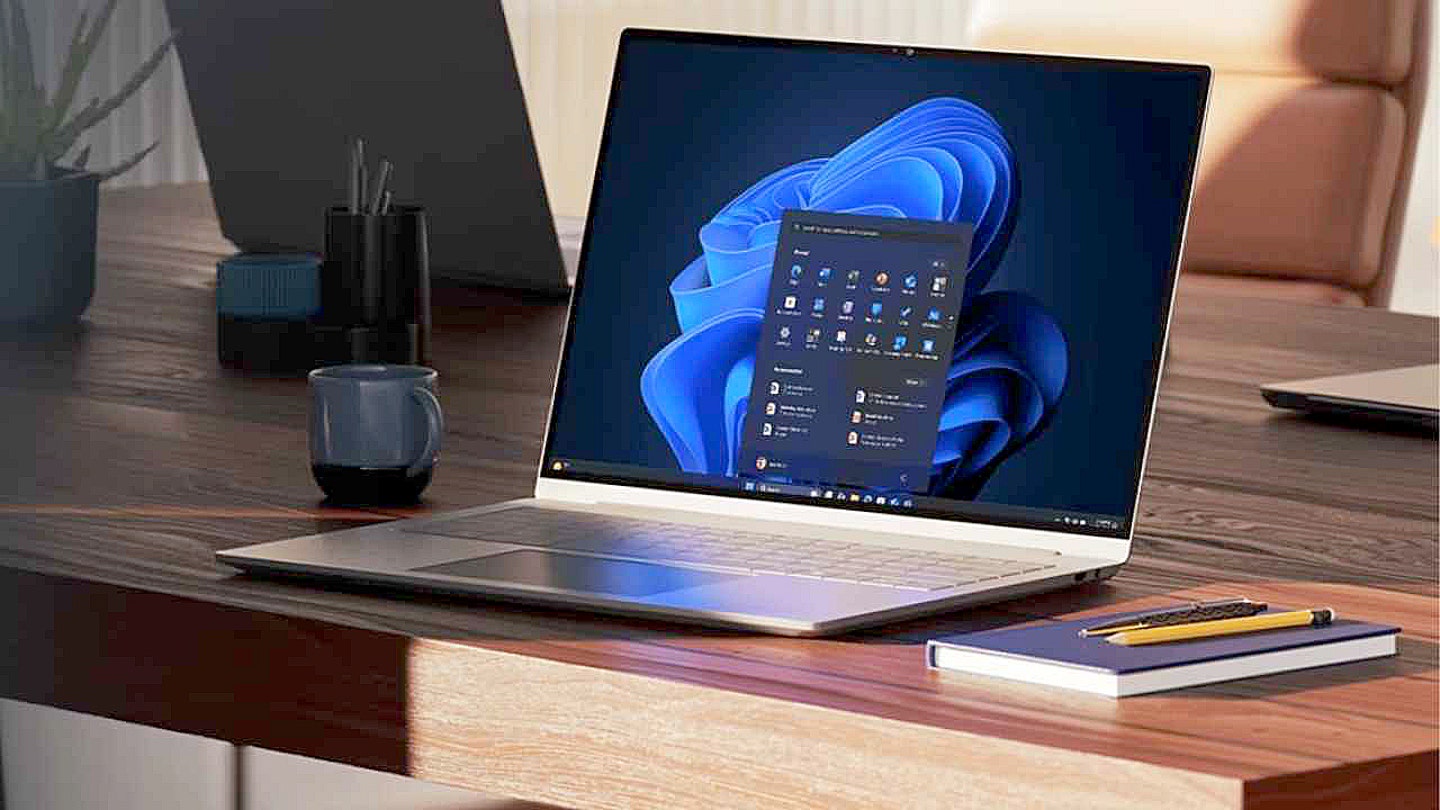
Microsoft will end support for Windows 10 this month. (Microsoft)
What to prepare before you buy a new computer
Before you switch to a new Windows 11 PC, take these steps to organize your files, programs and accounts, so the move goes as smoothly as possible.
1) Inventory what you have and make sure it’s backed up.
- List the programs/software you use (Word, PowerPoint, Excel, Acrobat, etc.), including any license/activation info.
- Find where your data is: local hard drive, external My Passport drive or cloud (OneDrive, Google Drive, etc.).
- Make sure you have backups of anything that’s only local.
2) Check how your email is set up.
- If it’s a Microsoft/Outlook/Exchange account, a lot may already be stored in the cloud. Outlook contacts/calendars may sync automatically depending on how your accounts are configured.
- If you use POP (email downloaded locally), or “local only” Outlook data (.pst files), you’ll need to move those manually.
3) Have your login accounts ready.
- Know your Microsoft account credentials (if you use one).
- Know admin passwords for existing software.
4) Gather license keys/software installers.
- For paid apps (Adobe Acrobat etc.), make sure you have install files or know how to re-download, plus activation keys.
- Make a note of any special settings or plugins you use so they get restored.
Choosing the right computer for your needs
When choosing a new HP computer, confirm it runs Windows 11 out of the box. Pick a model with enough storage to hold all your files and plenty of RAM for multitasking. If you rely on external drives, make sure the new computer has the right ports, like USB-C or USB 3.0.
You can browse CyberGuy’s best laptop picks or best desktop computers for solid options at Cyberguy.com. If you mainly use your computer for email, browsing, or video calls, a tablet, Chromebook, or iPad might be all you need. They’re low-maintenance, secure, and often more affordable than a new Windows laptop.
WINDOWS 11 FLAW LETS HACKERS BYPASS SECURE BOOT PROTECTIONS
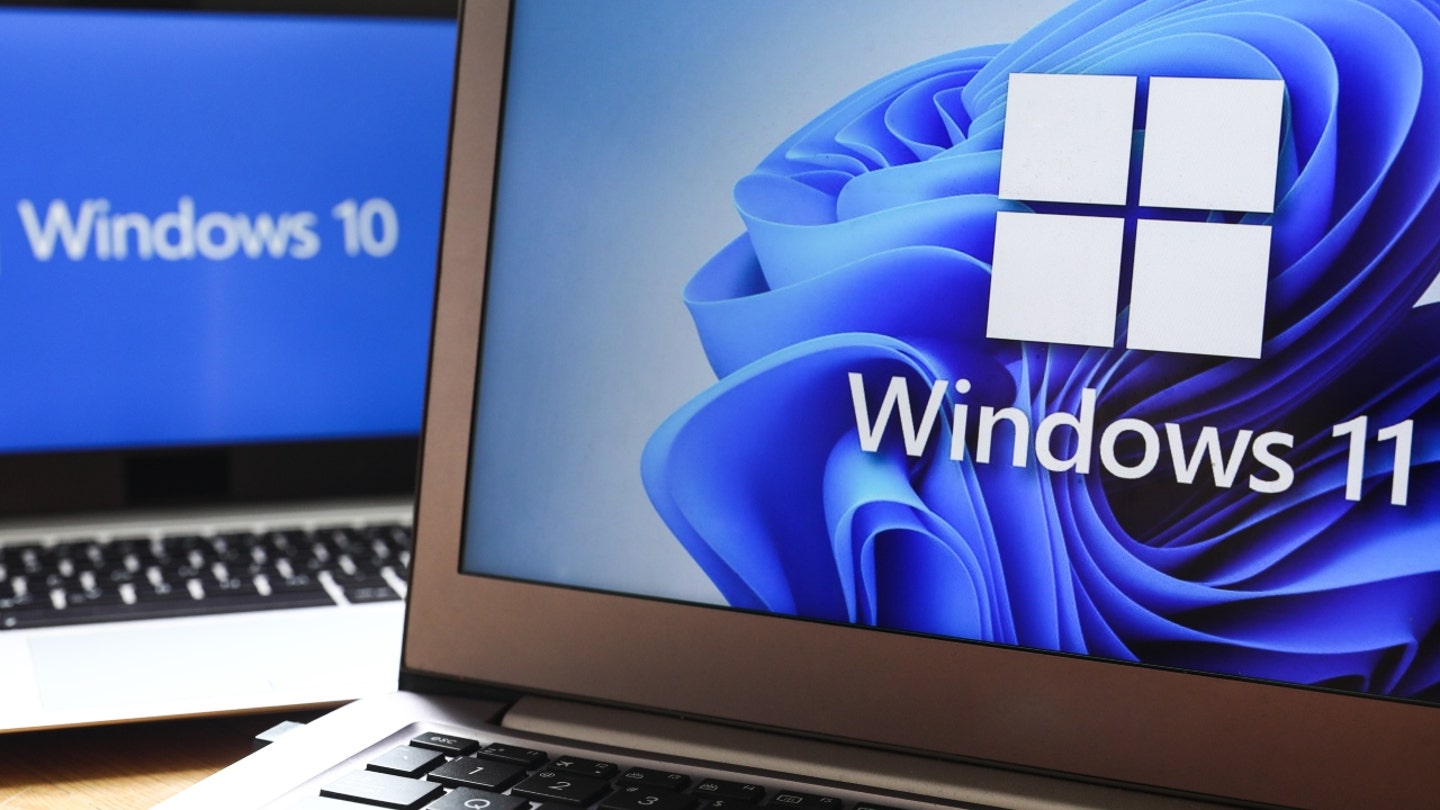
Windows 11 and Windows 10 operating system logos are displayed on laptop screens. Krakow, Poland, on Feb. 3, 2022. (Beata Zawrzel/NurPhoto)
Step-by-step: Migrating to the new Windows 11 computer
Moving to a new PC takes planning, but following these steps will help you transfer your files, programs and settings safely. This is especially important if you and your spouse use separate logins.
Back up everything
Start by backing up your personal files, documents, pictures and desktop to both your external drive and a cloud service like OneDrive. If you use Outlook, export your email, contacts, and calendar if needed.
- For POP or local .pst files, go to File → Open & Export → Export → Outlook Data File (.pst) and make a copy.
- For IMAP or Exchange accounts, confirm that everything has synced properly online.
Back up Windows and settings
Use Windows Backup or the built-in tools to save your settings and user folders. Apply the latest Windows updates on the old PC before making the switch.
Set up the new PC
When you turn on your new computer, sign in with your Microsoft account if you have one. This helps sync certain settings automatically. Reinstall your Office apps, Adobe Acrobat, and any other software using your license keys or installers.
Transfer data and settings
If both PCs are connected and supported, you can use Windows Backup’s “Transfer information to a new PC” option. Simply pair them and choose what to move. If that’s not an option, copy backups from your external drive or cloud storage onto the new computer. Restore email by importing your .pst file if required.
Verify everything works
Open your key programs to confirm licensing is valid. Check that your email, contacts and calendar are functioning correctly. Go through your files to make sure nothing is missing.
Set up backup and ongoing sync
Once you’re up and running, turn on OneDrive or your preferred cloud service to sync important folders like Documents and Desktop. Finally, create a regular backup plan using either your external drive or the cloud, so your new PC stays protected.
Common problems to avoid
Some users run out of space on their new PC because they underestimated how much data they had. Others lose email when they forget to export .pst files. License activation can also cause headaches if the software is tied to the old machine, so always deactivate before reinstalling. And remember that older programs may not work perfectly on Windows 11, so check compatibility in advance.
Tools that can help
- 3rd party software: Transfers files, settings and some installed apps automatically. For our picks, search “First 10 things to do if you got a new PC” on Cyberguy.com
- Windows Backup and Transfer: Free but may require reinstalling programs manually.
External hard drive backup: Still the simplest safety net for keeping copies of your important files. Copy everything important to your external drive as a safety measure before migrating.
MICROSOFT AUTHENTICATOR IS DELETING YOUR PASSWORDS
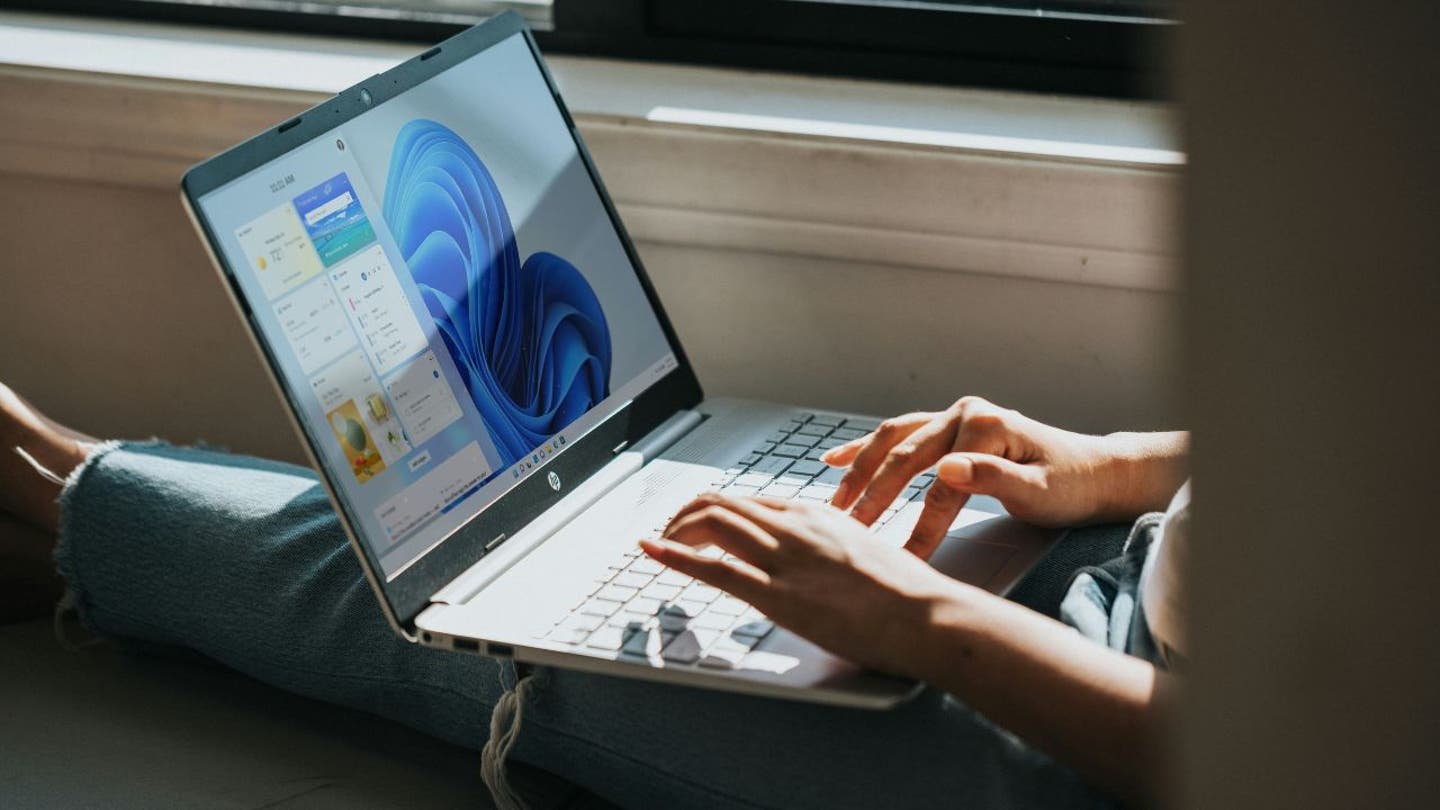
Experts recommend backing up your files to an external hard drive or a cloud service before making the switch. (Kurt “CyberGuy” Knutsson)
How long the process takes
Upgrading to a new computer isn’t instant, but knowing the timeline helps you plan your day. On average, you can expect the transition to take most of an afternoon. Here’s what it looks like step by step:
Choose and order your new PC: Browsing, comparing models and making the purchase usually takes one to two hours.
Initial setup and Windows updates: When the new computer arrives, the first startup and applying all current Windows updates can take another one to two hours.
Install key programs: Installing Microsoft Office apps and Adobe Acrobat typically requires about one hour, depending on download speed and license activation.
Back up data on your old PC: Creating backups of your documents, photos and email accounts usually takes one to three hours. The exact time depends on how much data you have and whether you use an external drive or the cloud.
Transfer data and settings: Moving files, Outlook .pst backups and Windows settings to the new computer often takes one to two hours.
Verify that everything works: Allow about an hour to test your programs, check your email and contacts, and confirm that none of your files were left behind.
Reconnect devices and tweak settings: Finally, plan for 30 to 60 minutes to reconnect printers, set up Bluetooth accessories and customize your desktop and preferences.
When you add it all together, the full migration can take anywhere from six to ten hours spread over a day. While it requires patience, completing each step carefully ensures that your new Windows 11 computer runs smoothly without losing important data.
Pro tip: Once your new PC is ready, don’t forget security. Install strong antivirus software right away. The best way to safeguard yourself from malicious links that install malware, potentially accessing your private information, is to have strong antivirus software installed on all your devices. This protection can also alert you to phishing emails and ransomware scams, keeping your personal information and digital assets safe.
Get my picks for the best 2025 antivirus protection winners for your Windows, Mac, Android & iOS devices at Cyberguy.com/LockUpYourTech
What to do with your old PC
Once you’ve finished moving everything over to your new Windows 11 computer and confirmed it’s working, don’t forget about your old PC. Leaving files on it could expose your personal data if the computer is ever donated, recycled or resold.
Before repurposing, always perform a secure wipe to erase all personal information. This step ensures that sensitive files, passwords and documents can’t be recovered later. After wiping, you can safely recycle the device, donate it or set it up for light use elsewhere in your home.
For step-by-step instructions, check out how to securely get rid of your old computer before recycling, selling or donating it.
CLICK HERE TO GET THE FOX NEWS APP
What if you’re not ready to upgrade?
Not everyone wants to switch right away. The good news is that Microsoft recently added two ways to extend Windows 10 support until October 13, 2026.
- Use Microsoft Rewards: Redeem 1,000 points to keep your Windows 10 system covered.
- Back up with OneDrive: Sync your files through Windows Backup and get extended support for free.
These options buy you more time, but remember: Windows 11 is the future. Planning now ensures you won’t be caught off guard when the final end date arrives.
Take my quiz: How safe is your online security?
Think your devices and data are truly protected? Take this quick quiz to see where your digital habits stand. From passwords to Wi-Fi settings, you’ll get a personalized breakdown of what you’re doing right — and what needs improvement. Take my Quiz here: Cyberguy.com/Quiz
Kurt’s key takeaways
Upgrading from Windows 10 to Windows 11 may feel overwhelming, but it doesn’t have to be. With the right preparation, backups and tools, you can make the switch smoothly and protect everything that matters.
Are you ready to upgrade before Windows 10 support runs out, or will you risk sticking with an outdated system? Let us know by writing to us at Cyberguy.com/Contact
Sign up for my FREE CyberGuy Report
Get my best tech tips, urgent security alerts, and exclusive deals delivered straight to your inbox. Plus, you’ll get instant access to my Ultimate Scam Survival Guide — free when you join my CYBERGUY.COM/NEWSLETTER
Copyright 2025 CyberGuy.com. All rights reserved.